
Section 03 · The View from the Ridge
03Team Setup: Users, Roles & Licenses
Getting your people into the system with the right level of access takes two decisions per person: a role and a license. This section explains both, walks the invite flow, and recommends a setup for the common leadership and administrative roles.
Roles vs. licenses
Every user has a role and, optionally, a license (a permission group):
- The role — Rep, Manager, Admin, or Owner — sets the baseline and how far up the coaching and pipeline views a person can see (their own work, their team's, or everyone's).
- The license is a locked preset that spells out exactly what a person can view, create, edit, and delete, plus special powers like importing data or managing users. A user with no license simply falls back to their role's defaults.
The four licenses
Under Admin → Users, the panel "What do these licenses mean?" shows the full matrix. In plain terms:
| License | What it grants |
|---|---|
| Owner | Full access to all data and every setting, including managing other people's permissions and permanently deleting data. |
| Non-selling Admin | Full access to data and to configuration (users, importing, lead collection) — but can't change permission groups or permanently delete data. Ideal for an operations administrator. |
| Sales Rep | Works their own accounts: view, create, and edit companies, contacts, and deals, and full control of their own activities and tasks — but can't export or delete account records. |
| View-only Collaborator | Read-only on assigned accounts. For someone who needs to see but not touch. |
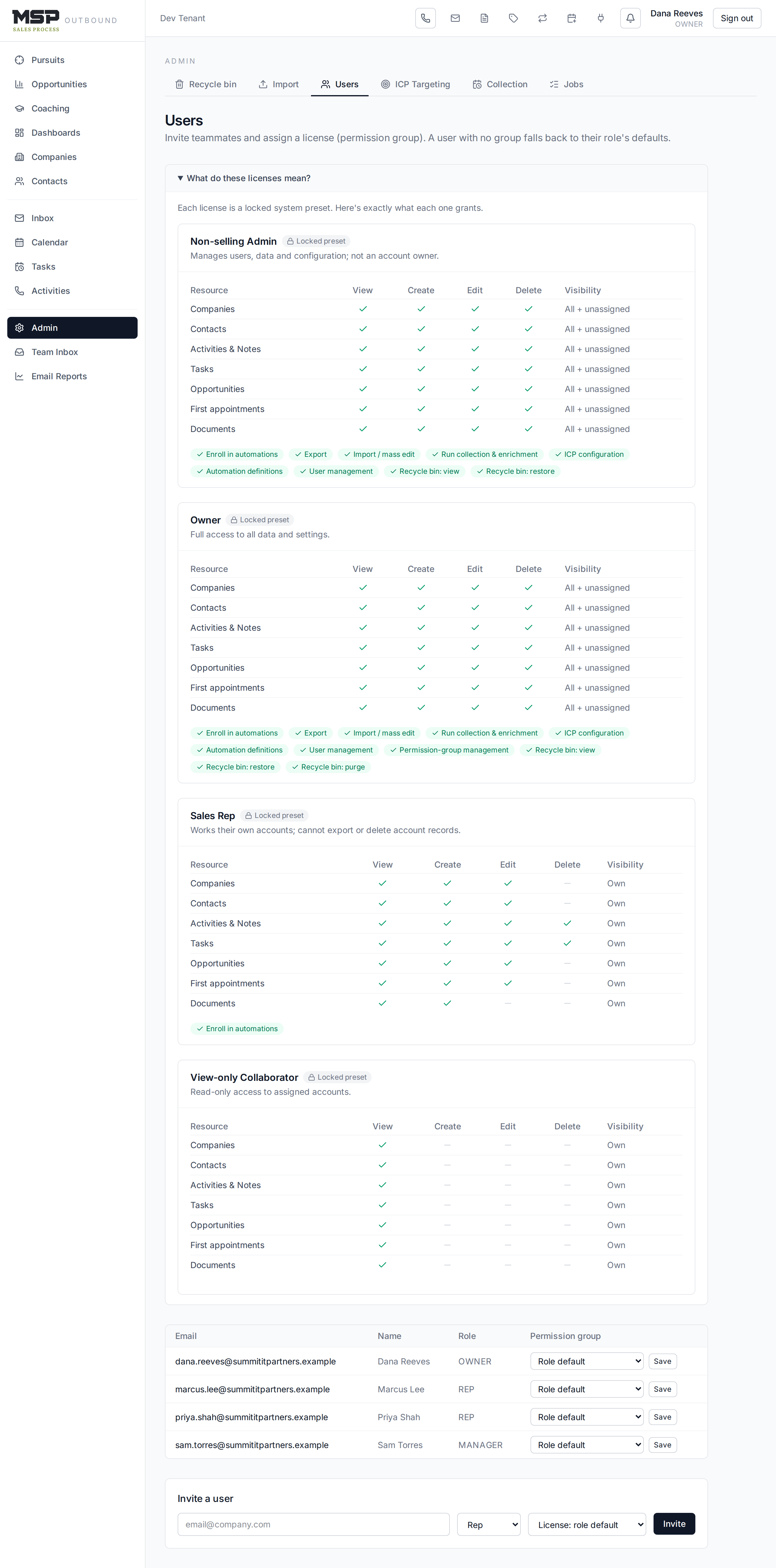
Figure 3.1The license matrix. Each preset is locked, so access stays consistent and predictable.
How much each role can see
Visibility follows the role, and it's what makes the coaching dashboard and pipeline useful at each level:
- Rep — their own accounts and their own coaching.
- Manager — their team's accounts, pipeline, and coaching.
- Admin / Owner — everyone's.
Inviting a user
Go to Admin → Users and use the Invite a user panel: enter their email, pick a role, and choose a license (or leave it on "role default"). They'll sign in with their own Microsoft 365 account — there's no password to set or share.
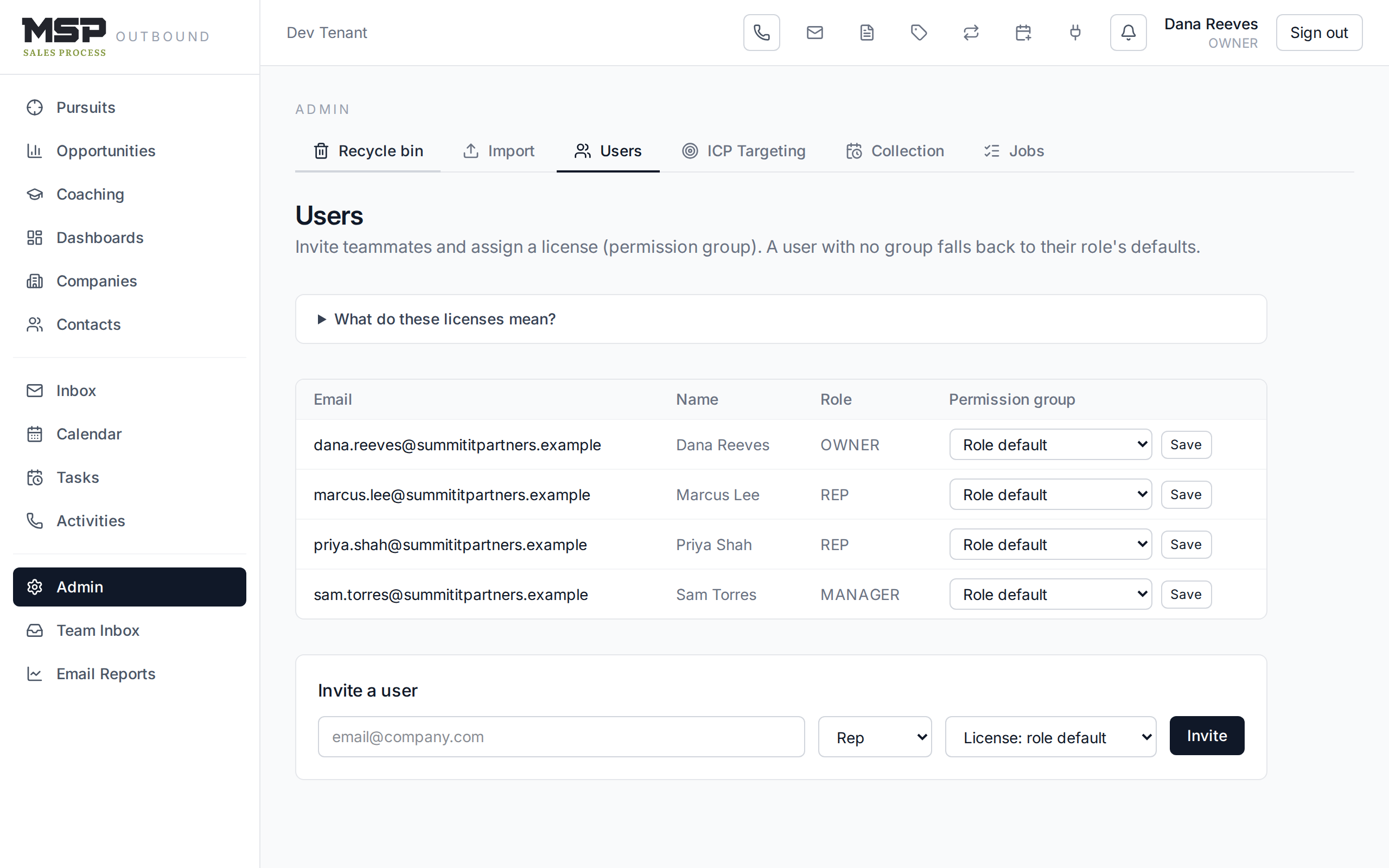
Figure 3.2The Users page. Change anyone's license from the table; invite new people from the panel.
Fox & Crow sets this up
Your reps are typically invited for you during onboarding, and the plays are pre-loaded. You'll mainly use this page to adjust access as your team changes — add a new hire, promote a rep to manager, or grant an admin.
Recommended setup for your team
| Person | Role | License |
|---|---|---|
| Business owner (occasional viewer) | Owner | Owner |
| Director of sales (coaches, forecasts) | Owner or Admin | Non-selling Admin |
| Sales administrator (loads lists, checks pipeline) | Admin | Non-selling Admin |
| Sales rep | Rep | Sales Rep |
| Outside observer / partner | Rep | View-only Collaborator |
Good to know
Only an Owner can permanently delete data or change permission groups — a deliberate guardrail. Give the Owner license sparingly. The Non-selling Admin license covers everything a sales director or administrator needs day to day without those two powers.
The bottom line
Right role, right license, right visibility.
Two choices per person set what they see and what they can do. Use Non-selling Admin for your leaders and administrators, Sales Rep for sellers, and reserve Owner for the few who truly need it.