
Section 09 · Running the System
09Importing Your Data
If you're coming from another CRM or a pile of spreadsheets, the importer brings your history in by CSV — companies, historical activities and notes, and tasks. This section walks the flow and the choices that keep your data clean on the way in.
Three kinds of import
Go to Admin → Import. Pick what you're importing:
- Companies — one row per company, with optional contact columns. Existing companies are matched by domain, then name.
- Activities & Notes — historical calls, emails, meetings, and notes, each matched to a company and, optionally, a contact and the organizer. Rows with no type import as notes.
- Tasks — historical to-dos, matched to a company and owner.
The flow
- Choose a CSV. The first row must be column headers. Up to 5,000 rows at a time.
- Map the columns. The importer auto-matches common names (Domain, Company name, Phone, and so on); adjust any it didn't catch.
- Preview. You'll see how many rows are importable and how many will be skipped (for example, rows with no company name).
- Set options. For companies you can apply labels to every imported row and assign an account owner.
- Choose how to handle duplicates (see below), then import.
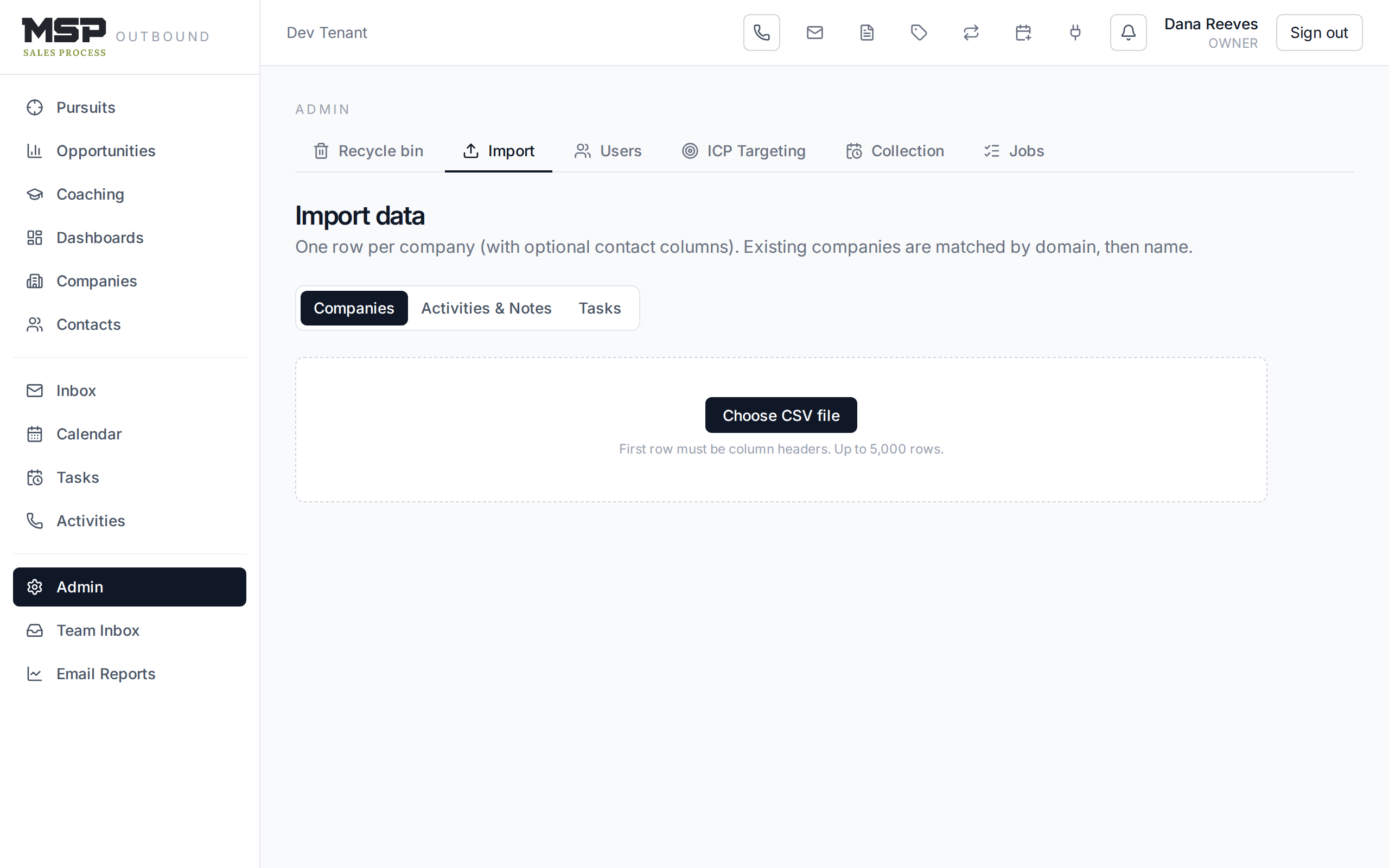
Figure 9.1The importer, mid-flow. Map columns, preview, then import — with a summary at the end.
Handling duplicates
When a company in your file already exists, you choose what happens:
Skip it
Leave the existing record untouched. The safe default.
Update its fields
Overwrite the existing record with your file's values.
Import anyway
Allow a duplicate row. Use rarely.
Recycle-bin aware
A previously deleted lead is never silently re-created.
After import
You'll get a summary — created, updated, skipped, and any per-row errors, each with the row number and the reason. Imported companies are run through the funnel gates automatically, so a company that arrives with enough facts lands at the right stage. They are not auto-enrolled in a play; use the bulk Enroll in play action on the Companies list to start them.
Good to know
Import companies first, then their activities and tasks — the later imports match onto companies that already exist. A due date with no time on a task is treated as all-day. Start with a small dry-run-sized file to confirm your column mapping before importing thousands of rows.
Fox & Crow can help with migration
A one-time migration from an existing CRM is something Fox & Crow will typically help you plan and shape — getting the source export and the column mapping right is the hard part. Once mapped, the import itself is quick.
The bottom line
Companies first, then history, deduped as you go.
Map carefully, preview before you commit, and choose your duplicate rule deliberately. The importer handles the rest — and tells you exactly what it did.