
Section 07 · The Trailhead in the CRM
07The Dialer
The phone is the center of gravity of your day. This is where the climb actually starts — one dial at a time. The CRM's built-in dialer lets you call from any record, hear the prospect, and log exactly what happened without ever leaving the page. This section shows you how to place a call, and — just as important — how to record the outcome the way the method expects.
Opening the dialer
You can start a call two ways:
- From the phone button in the top bar (top-right of every page) — this opens an empty dialer you can type a number into.
- From a company or contact — the Call button on a company page, or the phone icon next to any contact, opens the dialer already pointed at that account. You'll see a Numbers on this account list — click a contact's number or Company main to dial it.
The dialer opens as a small floating window. You can drag it, and you can minimize it — minimized windows tuck into the bottom-left corner and keep running, so a call in progress is never lost when you move around the CRM.
Fox & Crow sets this up
Your phone numbers and calling account are provisioned by Fox & Crow before you start — you don't configure anything. If you open the dialer and see "No number assigned — a setup step was missed. Ask an admin," it means your direct-dial number hasn't been attached yet. Let your admin know and they'll sort it out with us.
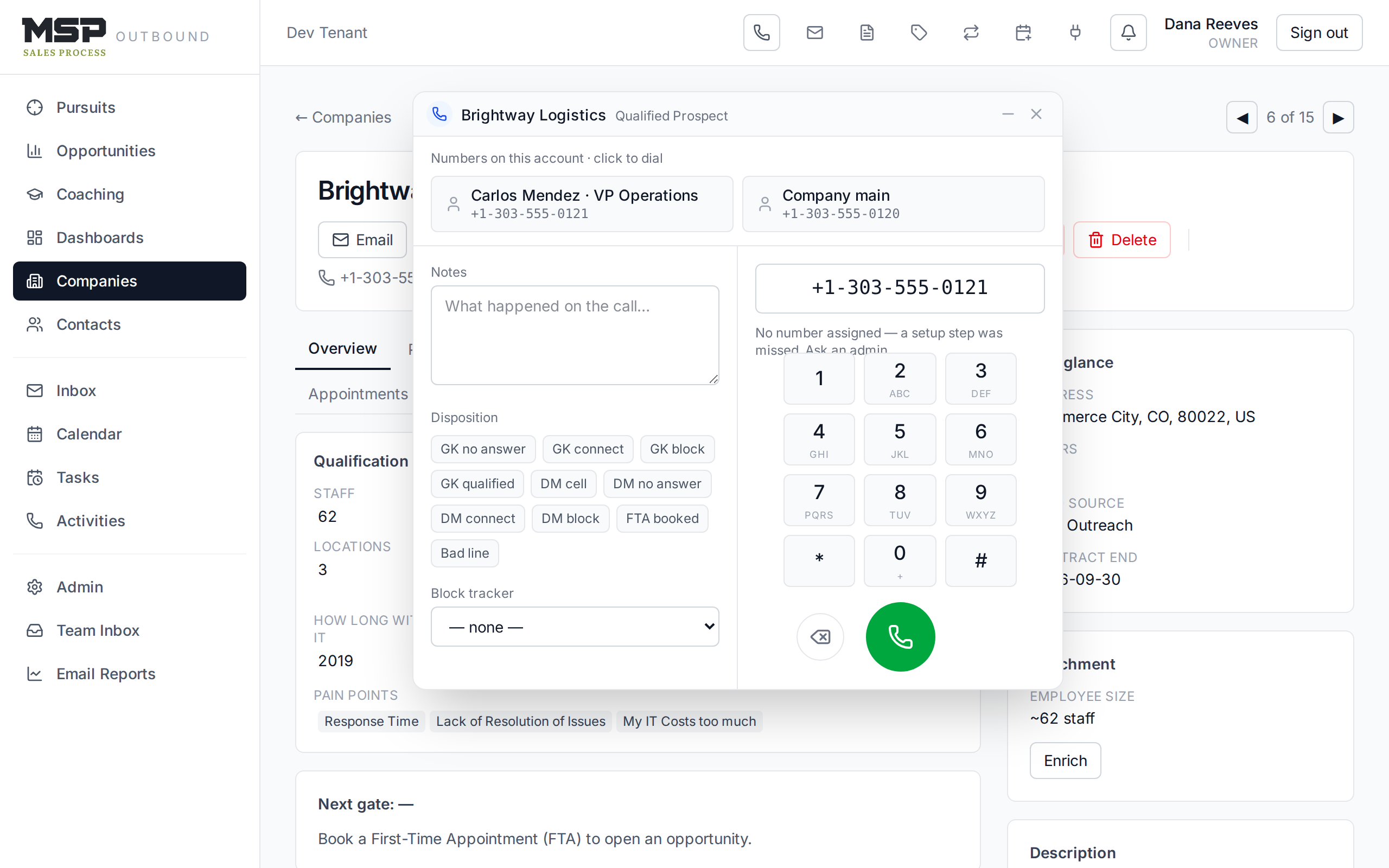
Figure 7.1The dialer, opened from a company record. The keypad and call controls are on the right; the disposition panel — where you record what happened — is on the left.
Placing a call
- Pick the number. Click a number from the account list, or type one into the field on the right using the keypad or your keyboard.
- Press the green Call button. The status line walks through Connecting to phone…, then Dialing…, then In call with a running timer once someone picks up.
- Talk. Use the keypad during the call if you need to enter extensions or menu options.
- Press the red End call button when you're done. The status changes to Call ended — set a disposition.
Good to know
There's no mute button and no on-screen recording light in the dialer. Whether calls are recorded at all is a single setting your organization turns on once (your admin controls it) — it isn't something you toggle per call.
Log the disposition — every time
This is the part that matters most, and it's the habit the Intensive drilled into you: every call gets a disposition. The left side of the dialer is where you do it, and the Save call button stays greyed out until you've picked one. That's on purpose — a call with no disposition is a call that, as far as the system is concerned, never happened.
If it isn't in your CRM, it didn't happen. The CRM is your system of record — you live and die in it.
Sales Rep Intensive — Discipline & Mindset
Pick the disposition that matches how the call actually ended. These map one-to-one to the outcomes you learned at the Trailhead:
| Disposition | Use it when |
|---|---|
| GK no answer | You reached the gatekeeper line and nobody picked up. |
| GK connect | You spoke to the gatekeeper but didn't get further this time. |
| GK block | The gatekeeper actively blocked you from the decision maker. |
| GK qualified | The gatekeeper gave you real qualifying information. |
| DM cell | You attempted the decision maker's direct or cell number. |
| DM no answer | You reached the decision maker's line and got no answer. |
| DM connect | You got the decision maker on the phone. |
| DM block | The decision maker shut the conversation down. |
| FTA booked | You booked the First-Time Appointment. The summit of the Trailhead. |
| Bad line | Wrong number, dead line, or a list error — no real contact made. |
The block tracker — only when an objection ends the call
Below the disposition is the Block tracker. Leave it on — none — most of the time. You only set it when an objection is what ended the call — the specific wall you hit. This is the one piece of tracking that is deliberately not logged on every call, so don't reach for it out of habit.
Set a block when
- "We already have IT support" ended the call
- "We don't take sales calls" shut it down
- A cost or trust objection stopped you cold
Leave it on "none" when
- Nobody answered
- The call went fine and you moved forward
- You simply didn't reach the decision maker yet
The block-tracker choices mirror the objections from your training:
The classics
- We don't need IT support
- We already have IT support
- We don't take sales calls
The rest
- Cost objection / you cost too much
- I don't believe you can help me
- Nobody will hack me
- We buy our own equipment
- Size mismatch · Why not in-house · FOAD / rude
Add your notes and save
Use the Notes box to capture what happened while it's fresh — bullets, not paragraphs. Then press Save call. The CRM writes a call activity onto the account with the duration, the disposition, the block tracker (if you set one), and your notes, all stamped automatically. Press Done to close the window.
The method in the tool
When you log a call, the CRM offers to create a follow-up task right away. Take it — and write the task the way you were taught: who you need to reach, their role, whether you've spoken, the pain point, and the attempt number. A good next-task line looks like: "DM reach out — Dana Ruiz, Ops Mgr, never spoken, PP: response time, Attempt #3." Your future self calls better because of it.
What good looks like on a call block
During a call block, your job is simple: dial, connect, disposition, next task, repeat. Batch one type of call per block — all qualification calls, or all decision-maker pitches — and let the dialer keep the rhythm. The numbers do the rest: roughly a hundred dials a day, and the funnel fills.
- Every call has a disposition before you hit Save.
- A block tracker is set only when an objection ended the call.
- Notes are short and factual.
- A follow-up task is scheduled before you move on.
The bottom line
Dial, then log — no exceptions.
The dialer only earns its keep if the outcome lands in the record. Disposition every call, block-track only the objections, and leave a descriptive next task behind. That discipline is what turns a hundred dials into a booked FTA — and a booked FTA into the climb.