
Section 10 · The Climb
10Email
The CRM sends email from your real mailbox, files every message against the right account automatically, and gives you templates, timed sequences, and light AI help — all without leaving the tool. This section covers the inbox, writing and sending, templates and sequences, and the compliance guardrails that keep your sending clean.
The inbox
Open Inbox to see your synced mail. Three views sit at the top — Inbox, Sent, and Scheduled — and a row of filter pills lets you narrow by how a message is filed: Account, Opportunity, Pursuit, Internal, or Other, plus quick filters for unread and unsaved.
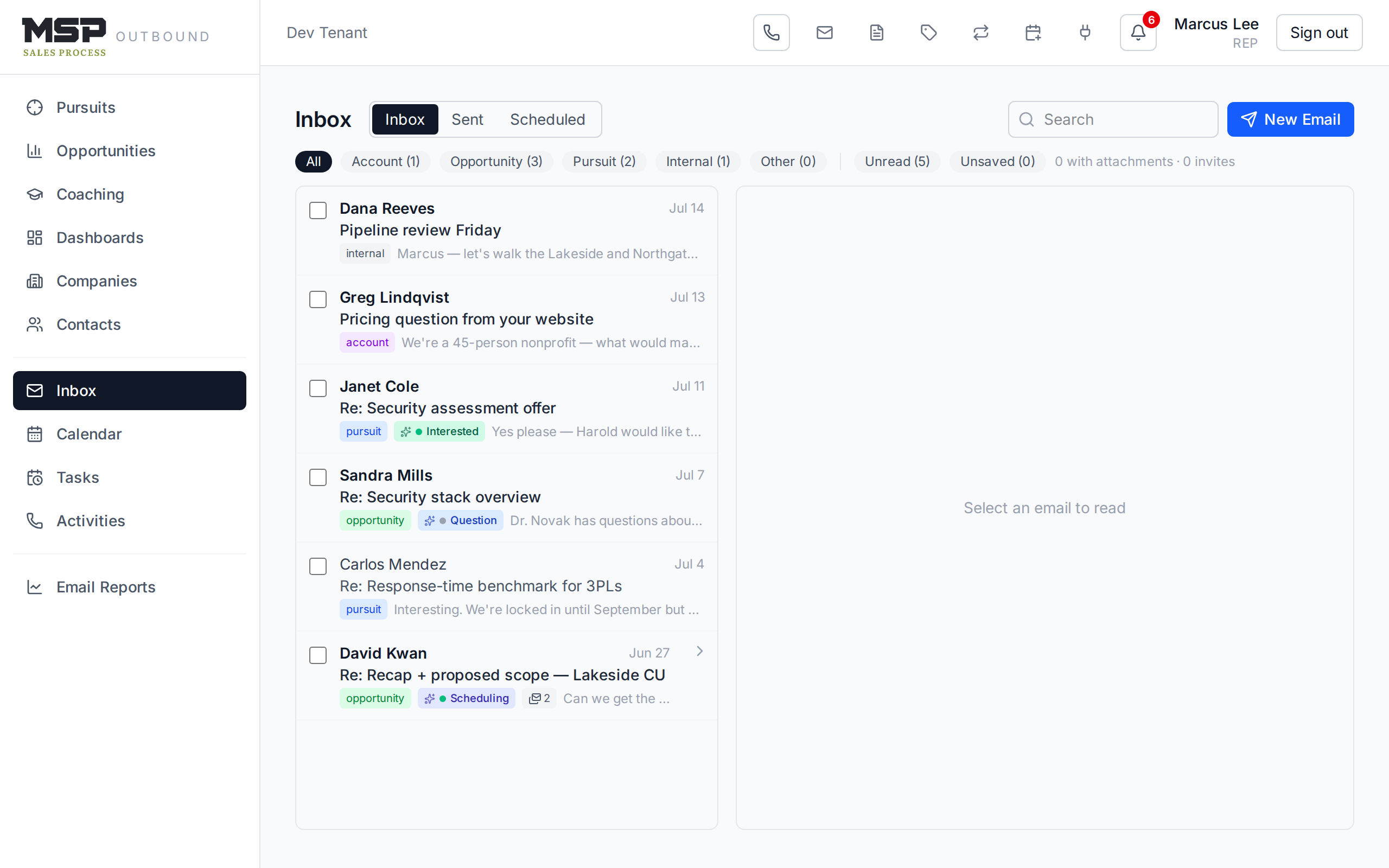
Figure 10.1The inbox. The reading pane (right) shows the thread, its related account, and any tracking.
Reading a message, you can Reply, Forward, Archive, create a Task, or Delete it (which also removes it from your real mailbox). Two AI helpers sit here too: Summarize boils a long thread down, and Next step suggests a methodology-aware move. On inbound mail, a small badge reads the sender's intent — Interested, Question, Scheduling, Objection, and so on — so you can triage at a glance.
Good to know
The CRM files each email against the right account for you: it matches the people on the message to your contacts, then relates it to their open deal, active pursuit, or the company. If it ever guesses wrong, use Related → + Add to fix it. And when an unknown sender emails you, a banner offers to create the contact on the spot.
Writing and sending
Click New Email (or Reply/Forward on a message) to open the composer — a floating window you can move and minimize. Your signature is added automatically; attach files, insert a template, and send.
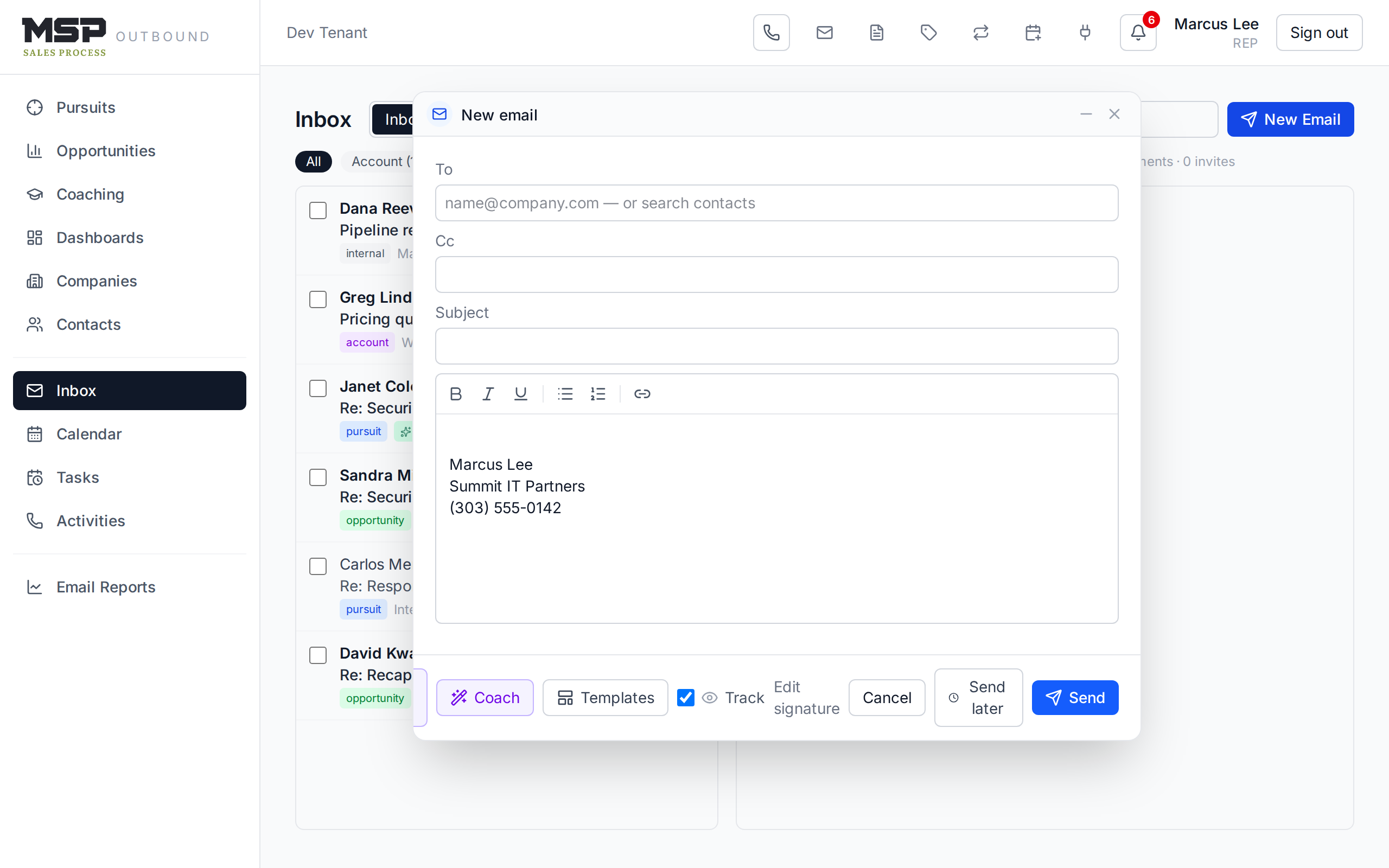
Figure 10.2The composer. The violet buttons are the AI helpers; the rest are everyday sending controls.
The footer holds a few powerful options:
- Track — see when the recipient opens the message or clicks a link (when your organization has tracking on).
- Send later — schedule the send; it goes out inside your sending window.
- AI draft — generate a first draft you then edit.
- Coach — have the AI critique your draft before you send it.
After you hit Send, a short Undo window appears — a safety net if you spot a typo the instant it leaves.
The method in the tool
AI draft and Coach are aids, not autopilots. Every suggestion is an editable proposal — the words that go out are yours. Use Coach the way you'd use a quick gut-check from a teammate: does this earn the next step, or is it a pitch from the parking lot?
Templates and snippets
Save reusable emails as templates (subject + body) and reusable blocks as snippets. Both live under the Email templates icon in the top bar. Use merge tokens like {{contact.first_name}} and {{company.name}} — they fill in from the recipient when you send. Share a template with your team or keep it to yourself.
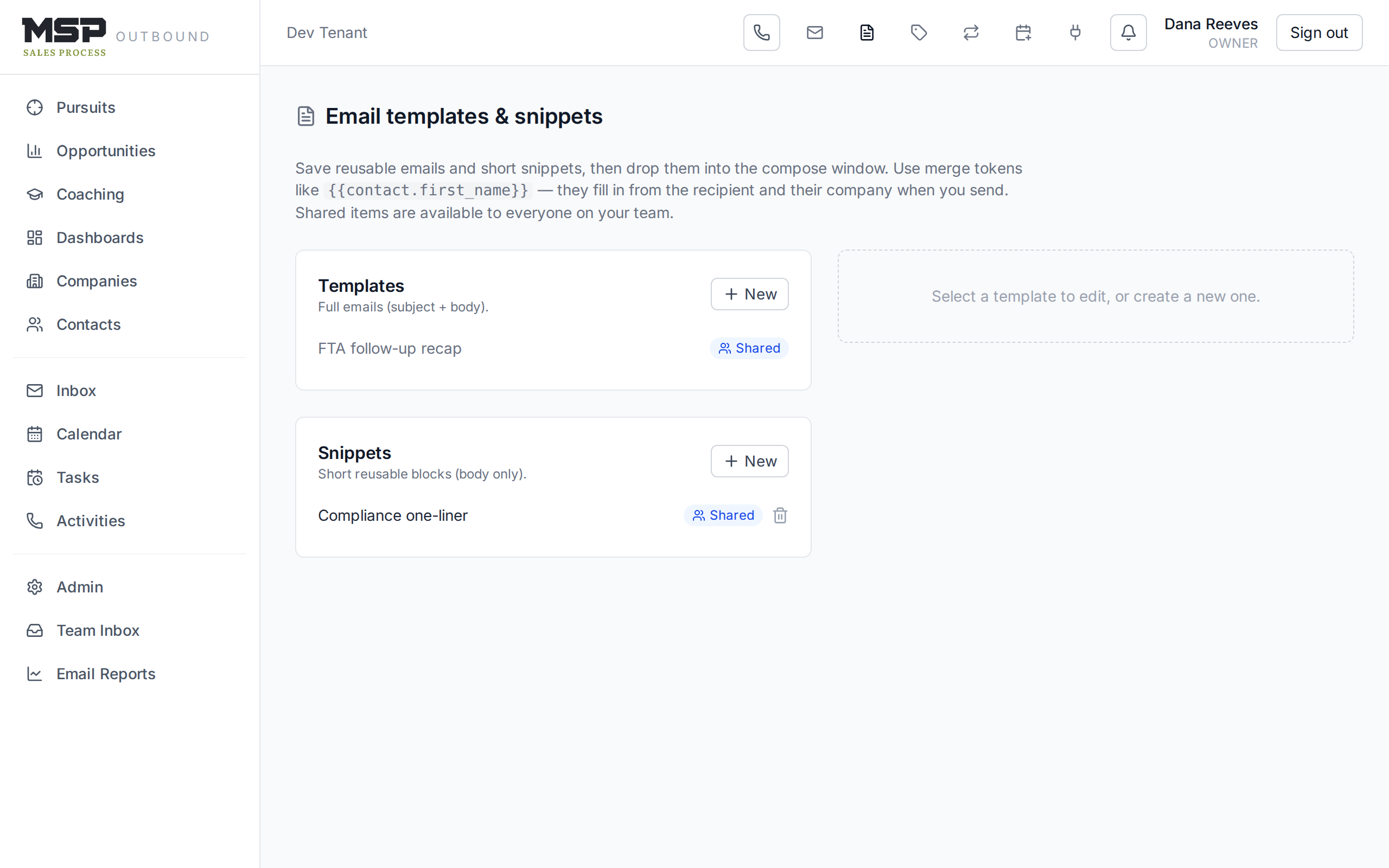
Figure 10.3A template with merge fields. Click a chip to drop a token into the body.
Sequences (cadences)
A sequence runs a multi-step email cadence as a play on an account: send a template, wait a few business days, then follow up or nudge you if there's no reply. Build them under the Email sequences icon. Each step is either an email or a no-reply nudge, and email steps default to creating a task with a pre-filled draft for you to review — you flip a step to auto-send only where you want it hands-off.
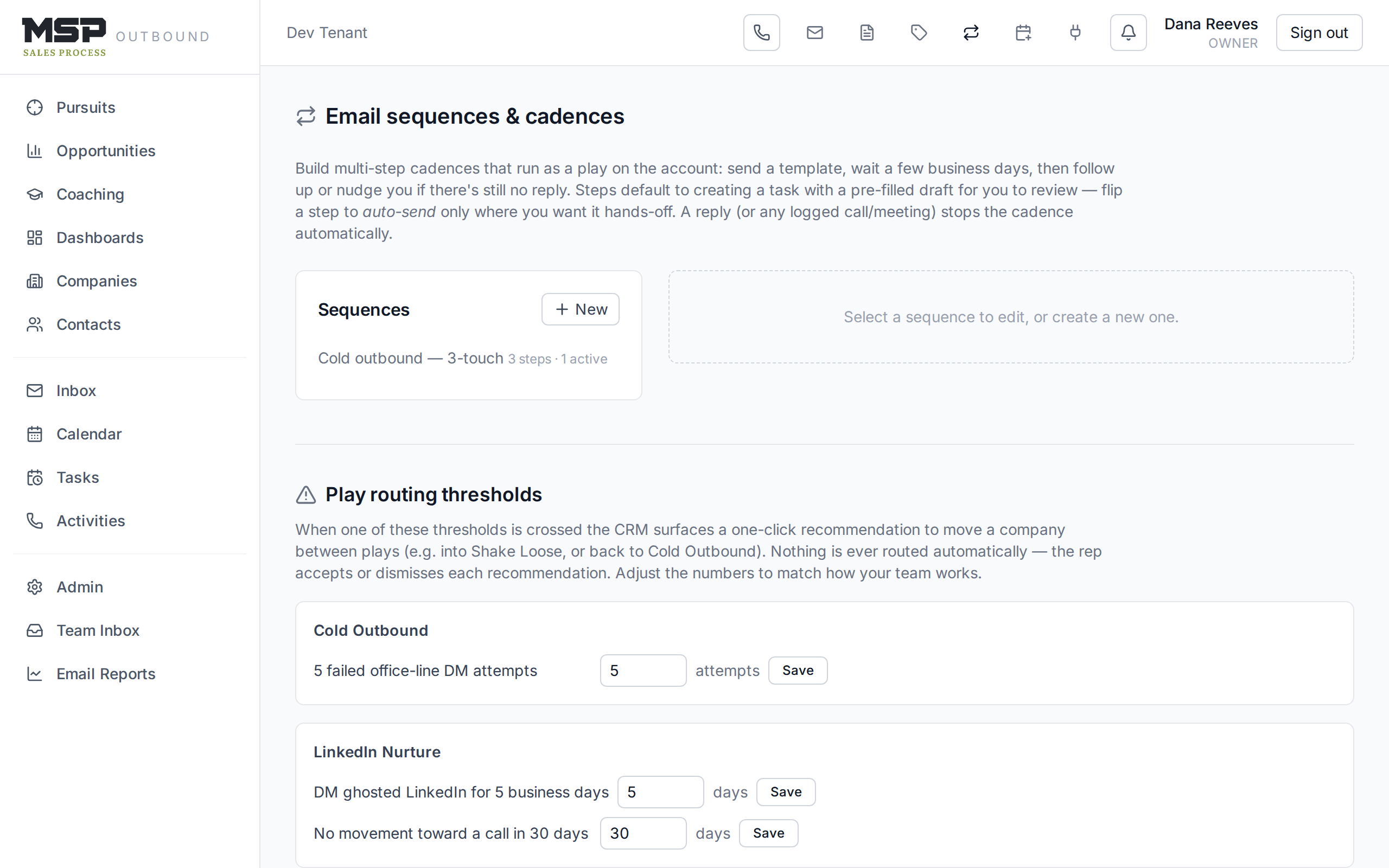
Figure 10.4A three-touch cadence. A reply — or any logged call or meeting — stops it automatically.
Staying compliant
The CRM protects you and your domain automatically. Outreach and automated sends carry a compliance footer with an unsubscribe link. Anyone who unsubscribes or hard-bounces goes onto a suppression list, and the composer will stop you from emailing them — if you try, it asks for a reason and only allows it for a genuine one-to-one reply. This is guidance built into the tool, not red tape.
The bottom line
Send as yourself; let the tool do the filing.
Write from your own mailbox, lean on templates and sequences for the repeatable parts, and let the CRM relate, track, and keep you compliant. Every message lands on the right account without a thought.