Section 13 · Your Guide Check
13Your Coaching Page
Your calls and meetings are scored against the same rubric you learned in the Intensive, and the results come back as a weekly focus — what you're doing well, what to work on, and the specific lessons that will help. This is your Guide Check made visible. This section shows you how to read your coaching page and how to feed it.
What the coaching page is
Open Coaching. The page pulls together everything the coaching engine has learned from your recorded calls and uploaded meetings: an overall rating, scores by category and by skill, the themes that keep coming up, and a short written summary. It updates as you work — the more real calls it sees, the sharper it gets.
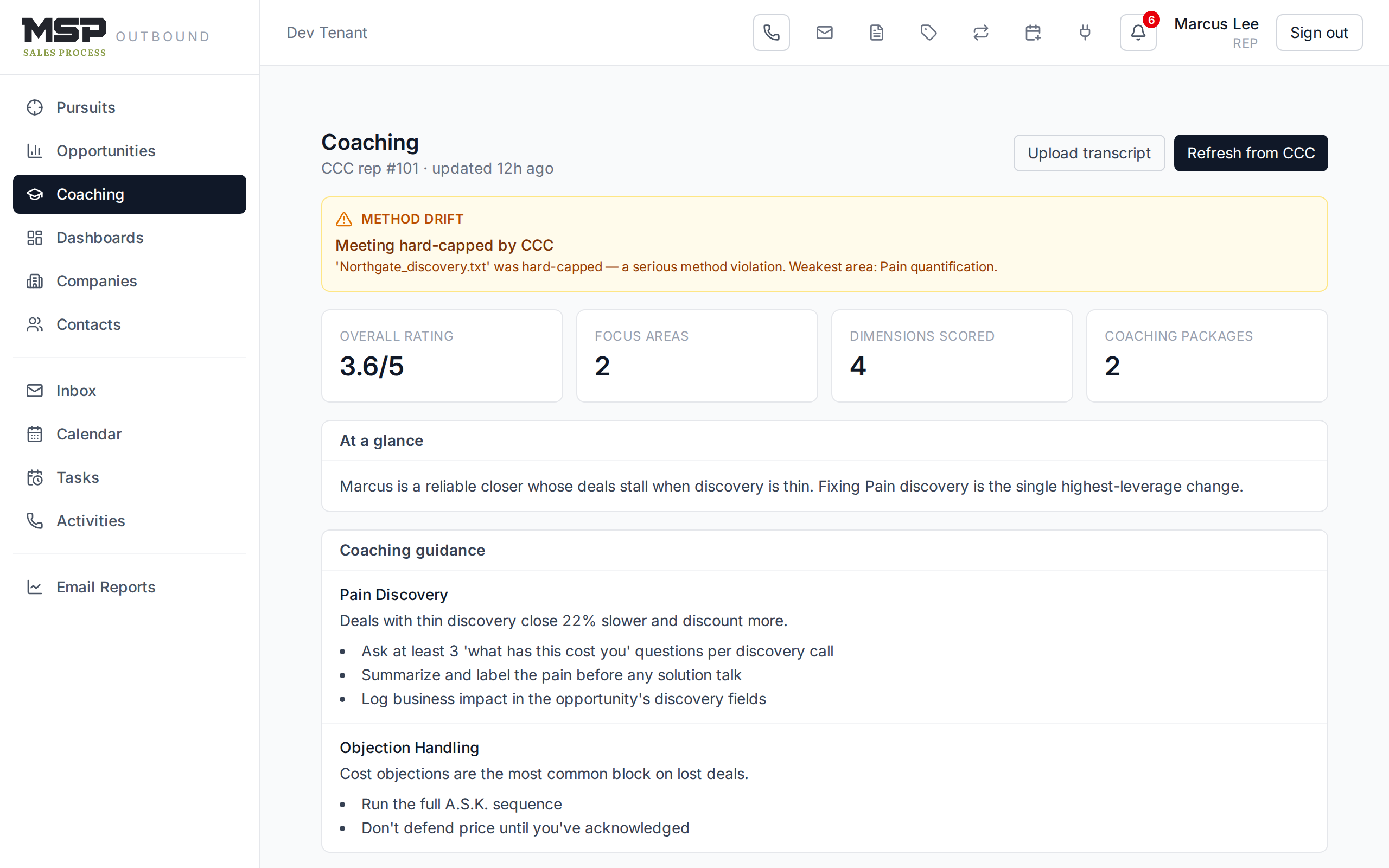
Figure 13.1Your coaching page. Focus areas are the headline — the two or three things to work on now.
How to read it
- Overall rating and the metric tiles give you the top-line: how you're trending.
- Focus areas are the point of the page — the specific skills to work on, each with the metric behind it and links to the exact lessons that help. A Repeat badge means it's come up before; that's your priority.
- Category ratings and Skill dimensions break the score down, with an arrow showing whether each is improving or slipping.
- At a glance, Coaching guidance, and By category are the written coaching — read these like notes from a coach who listened to your calls.
Feeding it: recorded calls and uploaded meetings
Two things fuel your coaching:
- Calls made through the dialer are scored automatically. On the account's Activity tab, a scored call shows a Coaching panel with a "Work on" takeaway and the reasoning behind each score.
- Meetings — your discovery and proposal conversations — you upload. Click Upload transcript, pick the company, choose the meeting type, and attach the transcript file (a recorder export, or a raw Teams/Zoom transcript). The engine scores it and folds it into your coaching.
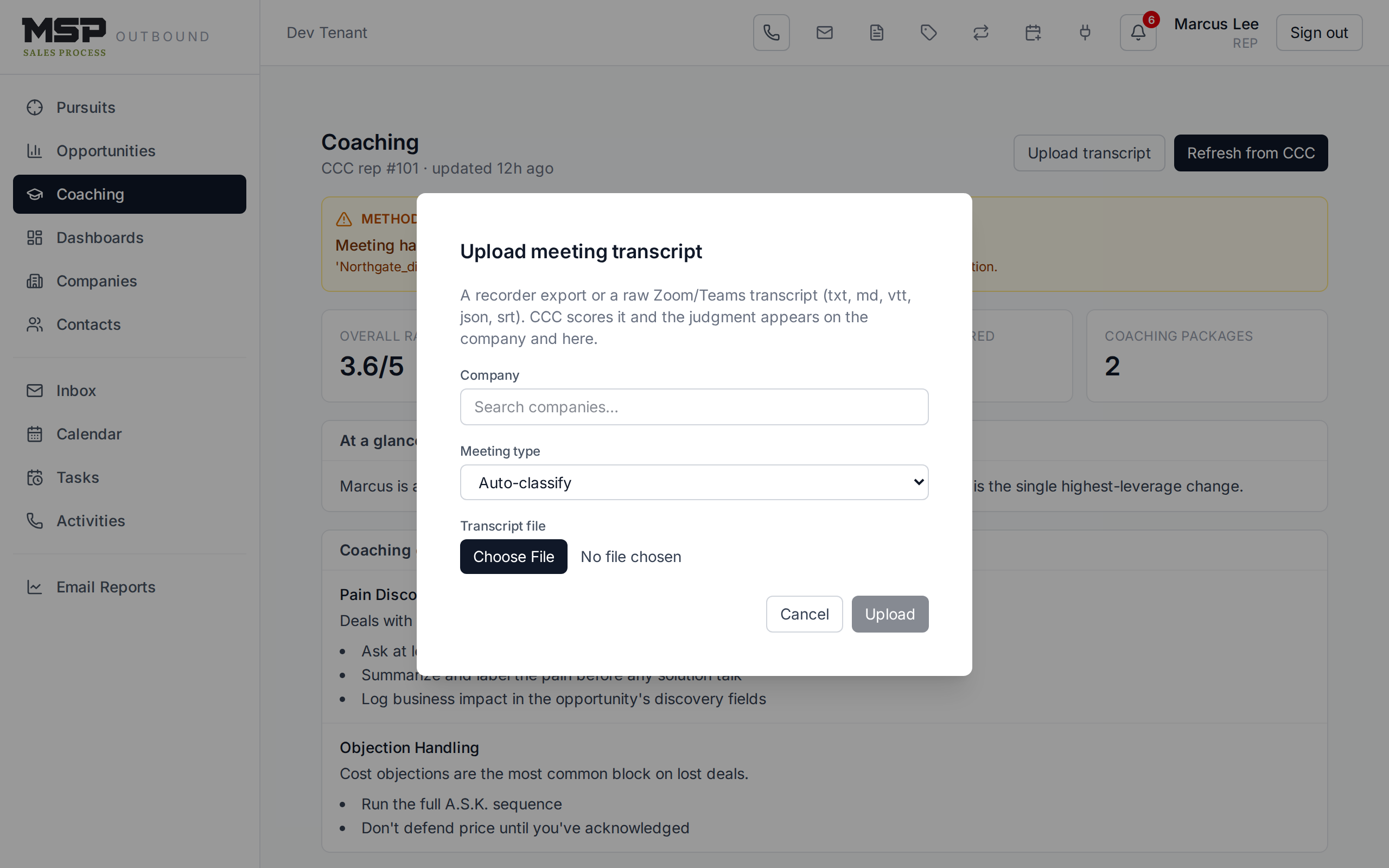
Figure 13.2Uploading a meeting transcript. Coaching on it appears once the engine finishes.
Good to know
If your page says it isn't linked yet, click Refresh from CCC to pull your latest. New reps link automatically once they've been active; the button is there for the first pull or whenever you want the very latest.
Method drift — catching bad habits early
A method drift flag appears when a pattern shows up across several calls — not a single off day, but a habit worth breaking, like consistently thin qualification or weak pain work. Treat a drift flag as a friendly early warning: it's easier to correct a habit at five calls than at fifty.
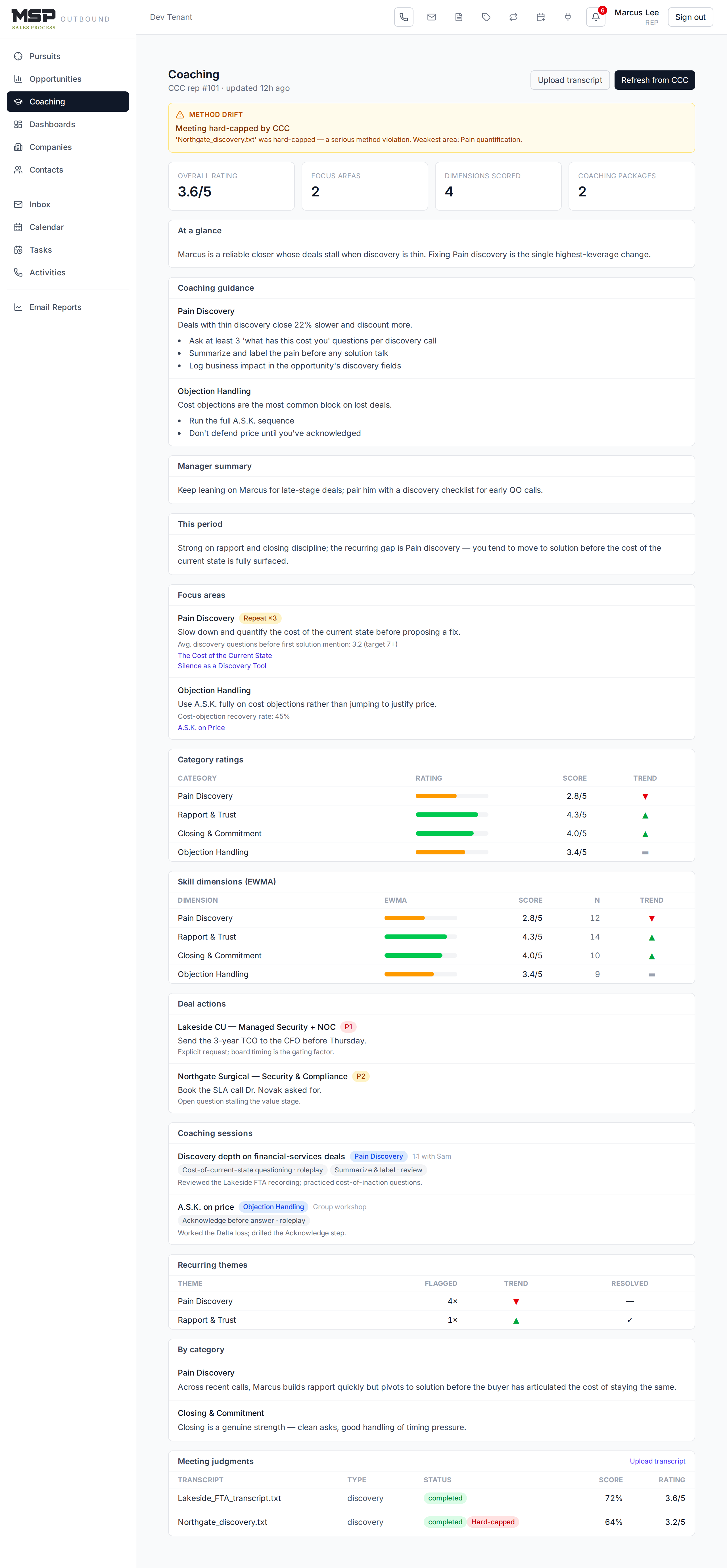
Figure 13.3A method-drift flag. It clears itself once the pattern stops.
Coaching drills on the account
On an account's Overview, the Coaching assignment card can suggest a personalized drill aimed at your current focus area — click Suggest a drill, and if it's useful, Assign as task to put it on your list. It's a way to turn a coaching insight into a concrete rep you actually do.
The method in the tool
This is the Weekly Coaching Report from the Intensive, living in the tool and updating continuously. Don't wait for a 1:1 to look at it — read your focus areas each week, do the recommended lesson, and watch the arrow turn. That's the learning cycle in motion.
The bottom line
Record your calls, upload your meetings, read your focus.
The coaching page only works if you feed it — dial through the tool and upload your meetings. Then read your focus areas weekly and act on them. That's how good reps become great ones.