
Section 11 · The Climb
11Calendar & Your Scheduler Page
Your CRM calendar mirrors your real Microsoft 365 or Google calendar, so appointments you book here show up there and vice versa. On top of that, the Scheduler gives you a personal booking link that lets prospects grab an open time without the back-and-forth. This section covers both.
The calendar
Open Calendar and switch between day, week, and month views. A sync indicator shows when each calendar last synced and which account it's connected to.
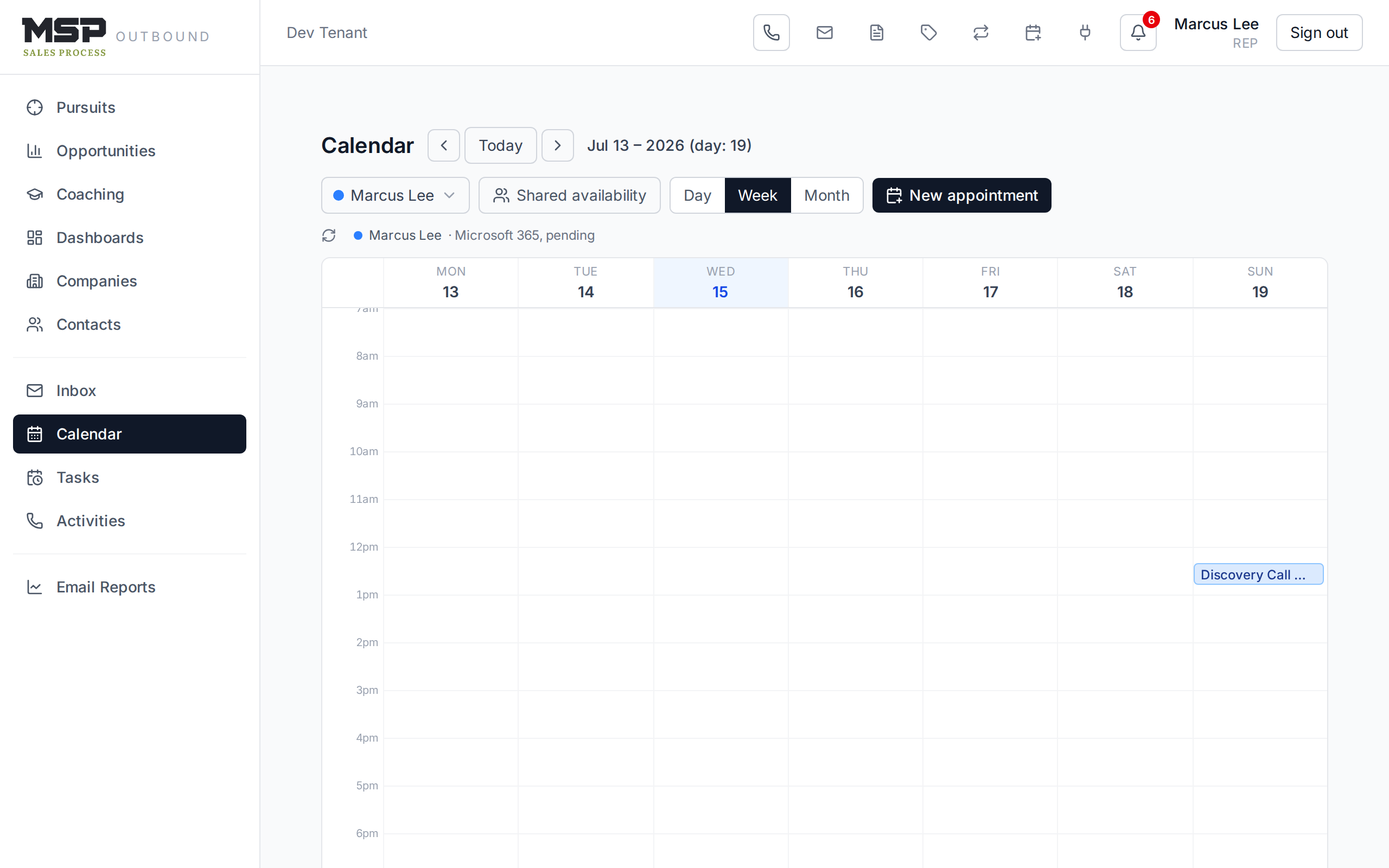
Figure 11.1The calendar in week view. Click New appointment to schedule a meeting.
Click New appointment to book a meeting against a company: give it a title, a type (Discovery, Follow-up, Demo, Check-in, or Other), a time, and — if you want an online meeting — pick Teams, Google Meet, or Zoom from the meeting picker. The invite and link go out automatically.
Good to know
Two extras help with planning: the Shared availability toggle shades the times any selected calendar is busy, so open slots stand out; and the people picker lets you view teammates' calendars alongside yours. The First-Time Appointment isn't booked here — it's booked from the pursuit (Section 08) so it stays tied to the funnel gate.
Your Scheduler page
The Scheduler is your own public booking page. Share the link and a prospect picks an open time straight from your real calendar; the CRM creates the appointment and sends the invite. Set it up from the Scheduler icon in the top bar (or Settings → Scheduler).

Figure 11.2Scheduler settings. The page stays hidden until your calendar is connected and you enable it.
There are a few things to set once:
- Public booking link — copy it, and toggle the page Enable page / Disable page.
- Profile — your title, phone, website, and a photo/logo, all shown to the visitor.
- Availability — working hours per weekday, how much notice you need, how far ahead people can book, slot length, and buffers. You can also block public holidays.
- Meeting types — the kinds of meetings people can book (for example a 30-minute Discovery Call), each with its own length and online-meeting type.
Approve each request, or let them book
One checkbox decides how bookings work: Accept meeting requests automatically. Leave it on and confirmed bookings drop straight onto your calendar. Turn it off and each request waits in a queue for you to Approve or Decline — useful when you want to vet who's booking.
What a prospect sees is a clean page with your profile on the left and a week of open time slots on the right. They pick a slot, enter their name and email, answer any questions you've set, and get a calendar invite automatically — no email tag to schedule a call.
Watch out
If someone books who isn't already one of your contacts, the CRM holds the booking in a review queue and asks you to assign it to the right company. That keeps unknown bookers from cluttering your accounts — check the queue so a real prospect doesn't sit waiting.
The bottom line
One calendar, plus a link that books for you.
Your CRM calendar and your real calendar are the same calendar. Turn on your Scheduler page and let good-fit prospects claim your open time — while you stay in control of who gets on it.